
mslo64.sys cannot load” error on Windows 11: what it means and how to fix it (safely)
This is one of those startup errors that looks scary at first: “A driver can’t load on this device.”

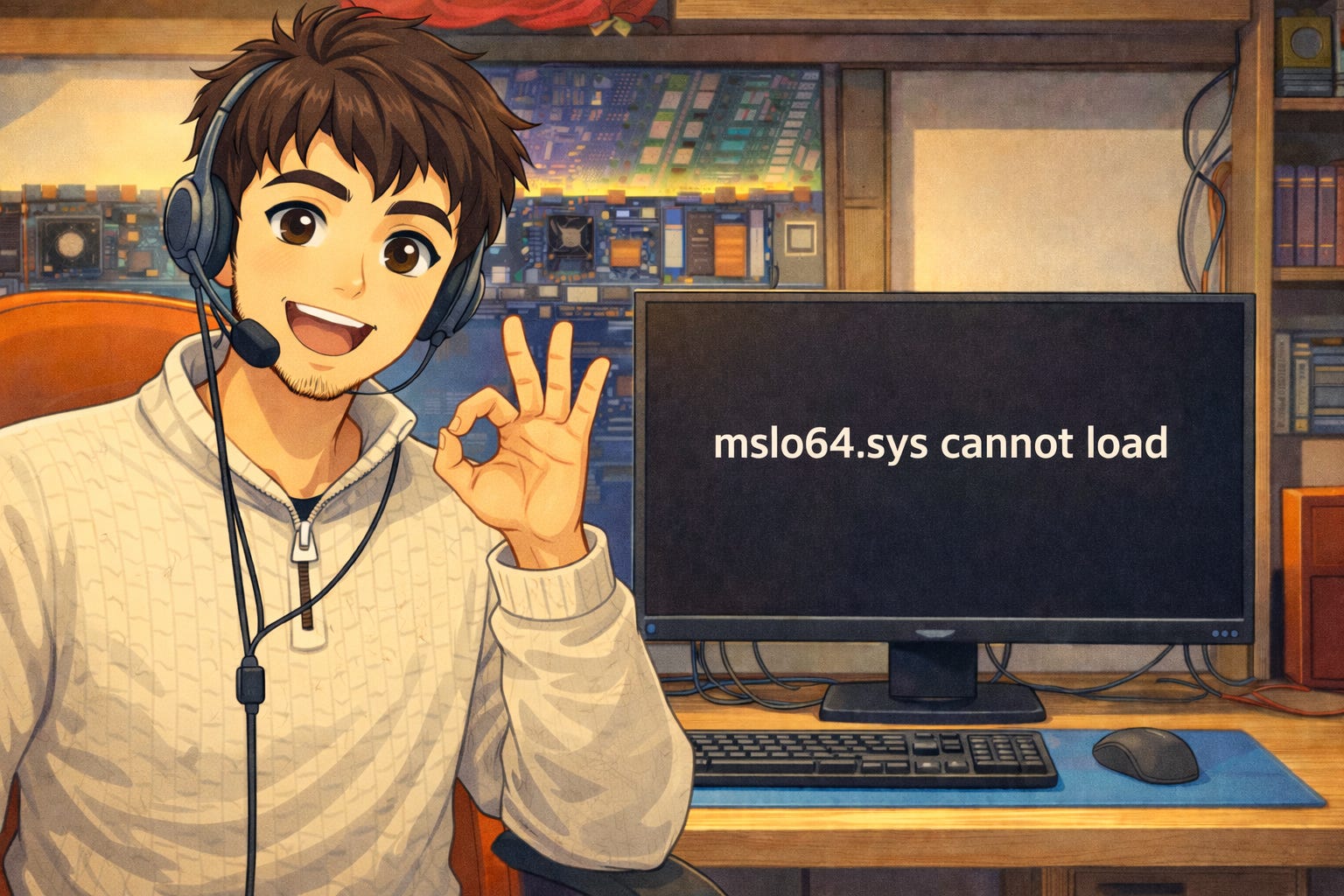
In many real-world cases, the issue is caused by an outdated or incompatible driver installed by RGB/control software (motherboard, RAM, GPU, fan/RGB utilities), especially when Memory Integrity (Core Isolation) is enabled in Windows 11.
The good news: in most cases, the clean fix is simple — update or remove the software that installed the driver. Disabling Memory Integrity can work as a temporary workaround, but it lowers security.
What mslo64.sys usually means
mslo64.sys is typically linked to a third-party hardware utility / RGB-related driver.
When Windows 11 flags it as incompatible or vulnerable, it blocks it from loading.
Simple version: Windows isn’t “breaking your PC” — it’s preventing an older driver from running for security reasons
Solution 1 (recommended): Update or uninstall the RGB / hardware utility
This is the first thing to try, and it’s often the real fix.
1) Identify the software using the driver
Check whether you have tools installed such as:
motherboard/GPU RGB software
OEM control suites
RAM RGB / fan controller / case lighting utilities
2) Update to the latest version
Go to the official manufacturer website and install the newest version.
3) If no compatible update exists, uninstall it
Settings → Apps → Installed apps
Find the suspected software
Uninstall
Restart the PC
Practical support tip: if the error disappears after uninstalling, you found the culprit. Then you can look for a newer compatible version.
Solution 2 (temporary workaround): Disable Memory Integrity (Core Isolation)
This may let the driver load again, but it reduces protection. Use it only if you need to get back to work immediately while you look for a proper fix.
Steps
Open Windows Security
Go to Device security
Open Core isolation details
Turn Memory integrity Off
Restart your PC
Important: once you update/remove the incompatible software, turn Memory Integrity back on.
Solution 3: Check Windows Update + Optional driver updates
Sometimes the fix arrives through Windows Update.
Where to check
Settings → Windows Update
Advanced options → Optional updates
Install any available driver updates (especially chipset / device control utilities)
Solution 4: Clean up leftover drivers in Device Manager (advanced users)
If you already uninstalled the software but still get the warning, an old driver may still be present.
Quick check
Right-click Start → Device Manager
View → Show hidden devices
Look for entries related to the removed RGB/control software
Uninstall only items you can clearly identify as related
Don’t remove random drivers (chipset, storage, GPU, etc.) just because they look unfamiliar.
Fast checklist
Identify the RGB/hardware utility installed
Update it from the official website
If not fixed → Uninstall it
Check Windows Update → Optional updates
Temporary workaround only → Disable Memory Integrity and restart
After fixing it → Re-enable Memory Integrity
Beginner-friendly notes
This error does not automatically mean malware.
In many cases, Windows 11 is blocking an old driver for security reasons.
The cleanest fix is usually: update or remove the RGB/performance utility.
Disabling Memory Integrity can help short-term, but it should not be the long-term solution.
If you fix it, share what worked (software update / uninstall / optional driver update / Memory Integrity toggle). It helps the next person dealing with the same mslo64.sys error.